
Estados & Reportes
Transaction Statuses (Operational Definition)
They represent the lifecycle of each operation/transaction:

Pending (asynchronous, may expire) → Authorized → Settled / Voided
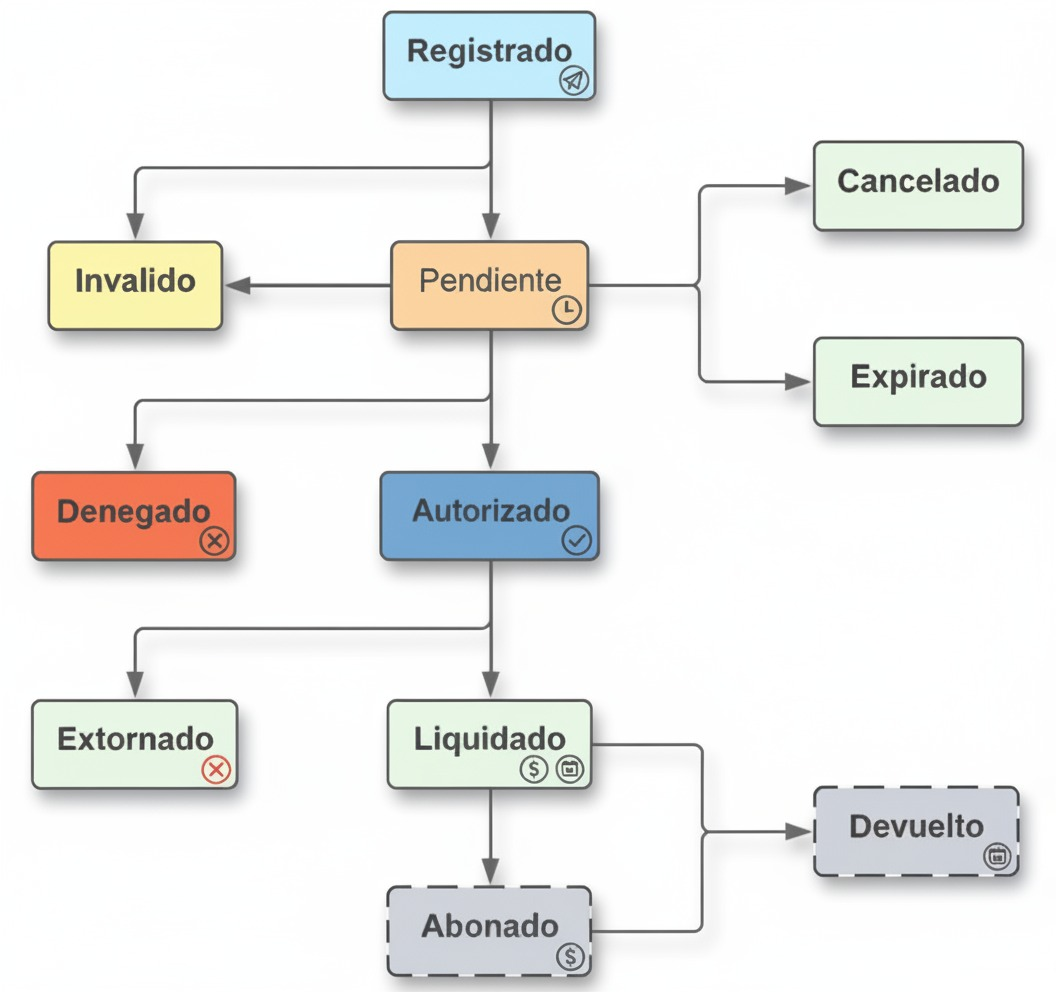
Non-successful statuses (Canceled, Expired, Invalid, Declined) are grouped in KPIs and filters as:
Successful = Authorized, Settled, Voided
Unsuccessful = All others
Status Definitions
Status | Description |
|---|---|
Pending | Operation created without a final response. Common in asynchronous methods (wallets / bank transfer). If no response is received within the TTL, it becomes Expired. |
Authorized | Approved by brand/processor. Funds are reserved and can be captured or settled. |
Settled | Included in the settlement process. Funds may not yet be deposited to the merchant (depending on acquirer calendar). Often grouped by batch or settlement file. |
Voided | Reversed after being authorized (refund or reversal, depending on acquirer policies and timeframes). |
Declined | Rejected by issuer / brand / internal rules (insufficient funds, incorrect PIN, etc.). |
Invalid | Failed internal risk validations or processing error. |
Canceled | Canceled by the customer or system before completion. |
Expired | TTL elapsed without response (no financial impact). |
Paid Out (Coming soon) | Indicates that funds have been credited to the merchant. |
Refunded (Coming soon) | Indicates that funds have been returned to the customer after settlement. |
Simplified Flow (Asynchronous Methods)
Created → Pending → Authorized / Declined / Expired → Settled
Pending automatically expires if the wallet does not respond within the configured time window.
What Does “Settled” Mean in the Dashboard?
Definition: The transaction has been captured/cleared by the acquirer or processor and included in a merchant payout.
Data Source: Determined via reconciliation processes using settlement files/batches from the processor (T+1, T+2, etc. depending on contract).
Where to See It: In the grid as Last Status = SETTLED. In Detail View, the Reconciliation and Authorization Analysis sections may include references to batch/file ID (if exposed by the integration).
Relation to “Authorized”: Every settled operation was previously authorized, but not every authorized one is settled (voids, cancellations, or later declines may apply).
Voids: An Administrator may request voids depending on policies/time windows. A post-settlement void appears as a negative entry in the corresponding payout period.
Exporting Reports (CSV / XLS)
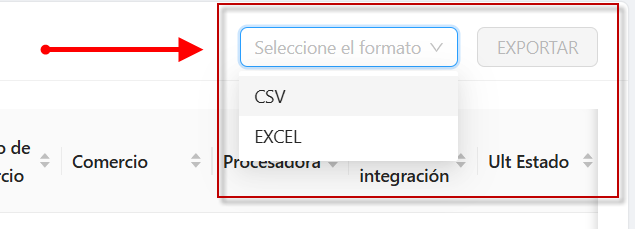
Steps to Export
Define the date range and filters.
Select the report format.
Click Export and choose CSV or XLS.
Download and verify the generated file.
Common Fields in Report Files
Date / Time, Channel, Payment Method, Brand, Status
Operation ID, Transaction ID, Order Number, Merchant
Amount, Currency, Authorization Code (if applicable)
Reason / Decline Message, ECI / VCI (if applicable)
Settlement Fields (if available): Settlement Date / Cutoff, Batch/File ID, Net Amount, Fees
CSV or XLS?
Format | Recommended Use |
|---|---|
CSV | Ideal for system integrations or external data ingestion. |
XLS | Best for Excel analysis, pivot tables, and charts. |
All reports are stored in Metrix and remain available for 48 hours.
Additional Information
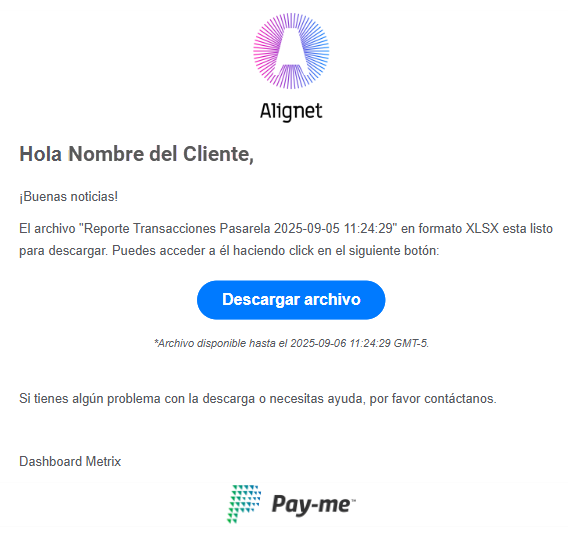
For large ranges, the report will be sent to the user’s email.
If the file is too large, you will receive a download link via email.
Quick Glossary
Term | Definition |
|---|---|
Operation | A group that contains one or more transaction attempts (for the same order). |
Transaction | A single attempt using a specific method, with its own status. |
Integration Method | API / SDK / FLEX (depending on channel/technology). |
BIN / Last PAN | First digits of issuer / last masked digits of the card. |
ECI / VCI | Transaction security indicators (if applicable). |
TTL | Time-to-live of a pending operation (expires if no response). |
Support | For incidents or questions, contact your internal support channel. Always include date range, Operation/Transaction ID, and Merchant. |
Soporte: Para incidencias o dudas, contacta a tu canal interno de soporte. Incluye siempre rango de fechas, Id Operación/Transacción y comercio. Contact