
Operations
Operations and Transactions Model
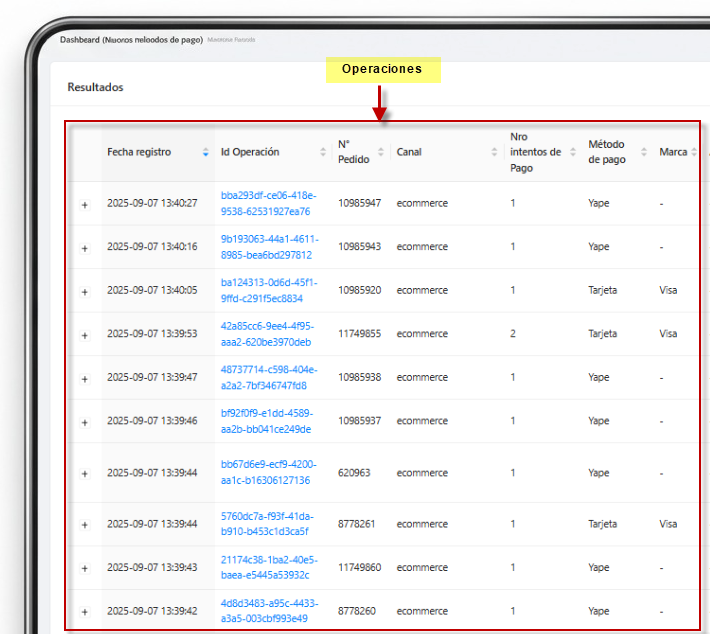
The system organizes activity into Operations (main unit), which can contain one or multiple Transactions (attempts). This structure allows full traceability of everything the customer did until a final outcome was reached.
Operation
Operation ID, Order Number, Channel, Number of Attempts
Payment Methods involved, Brand, Processor
Final Status and KPIs (amount, timestamp, merchant)

Example:
Operation OP-001 groups two Visa transactions — first declined, second approved; web channel; amount S/250; final result Approved.
An Operation groups the order, channel, attempts, timestamps, and payment methods — enabling full traceability and optimized conversion.
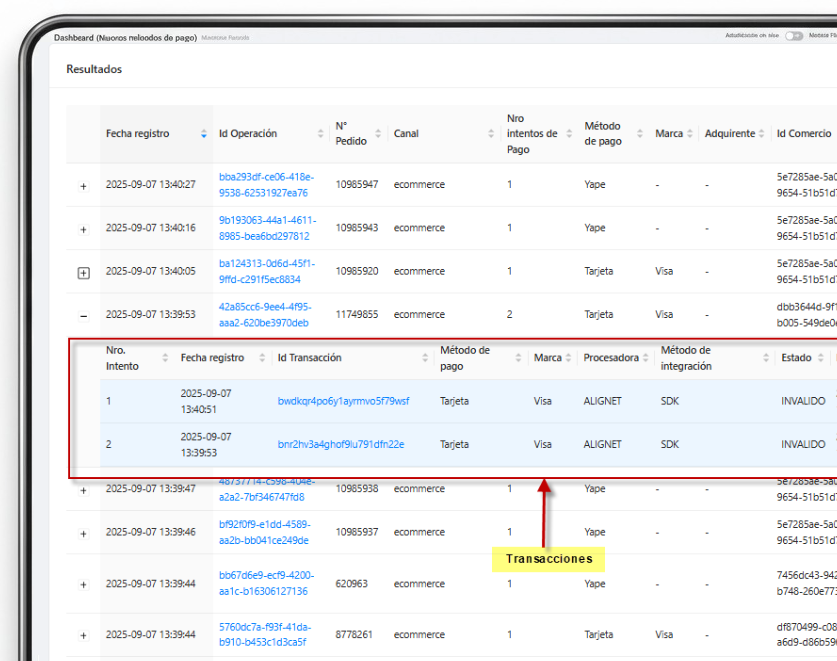
Transactions (when expanding an Operation)
Transaction ID, specific payment method, status, timestamp
Notes / Remarks (e.g. “Link generated”, “Not completed”)
Total processing time of the transaction
Typical example:
The customer first attempts to pay with Card (Declined) and then retries with Bank Transfer (Pending → Authorized).
Both attempts remain within the same Operation.
A transaction includes its ID, payment method, status, timestamp, remark, and total handling time.
Advanced Search
To accurately locate operations, use the following filters:
Date Range (required)
Payment Facilitator / Group / Merchant / Merchant ID
Integration Method (API, SDK, FLEX) and Channel (POS, Ecommerce)
Status (Pending, Authorized, Declined, Invalid, etc.)
Payment Method / Brand / Processor
Remarks / Notes and Order Number
Transaction ID / Operation ID
BIN and Masked PAN (Last PAN), Number of Attempts, Terminal ID
How to Search
Enter Start Date and End Date.
Add additional filters to narrow down results.
Click Search.
In the results table, expand an operation to view its transactions.
Use Export to download CSV/XLS files according to your permissions.
TIP
Start with a 1-day range and expand if needed.
When searching by Order Number, leave other fields empty to speed up the query.
For wallet/transfer (asynchronous) methods, review Pending and possible Expired statuses.
You can identify retries within the same operation using the “Number of Attempts” filter.
Quick View: Last 100 Transactions
Access from the side menu: Operations → Last 100 Transactions.
This is an immediate monitoring view that displays — in descending chronological order — the 100 most recent records (operations with expandable transactions) without requiring a date range.
What can I do?
Expand an operation to view its transactions.
Open the Transaction Detail (side panel) for full traceability.
Sort by columns (date, status, amount, brand, etc.).
When to use it?
Live monitoring during traffic peaks or campaigns.
Handling recent incidents without configuring filters.
Quick validations after deployment.

For historical queries, advanced filters, and CSV/XLS export, use the Advanced Search section.
Transaction Detail (Side Panel)
When clicking on the Transaction ID within an operation, a side panel opens showing the full technical and functional traceability.
Available Sections
Lifecycle: Timeline with milestones such as Registered → Pending → Authorized / Declined / Expired with timestamps.
General Information: Transaction ID (and processor reference), channel, current status, remark, amount and currency, creation / update / expiration dates.
Payment Method: Response and redirect URLs, masked cardholder data, masked PAN, BIN, issuing country, brand/type of card.
Authentication Results (3DS): Version (e.g. 2.2.0), ECI, CAVV, DS Transaction ID, TransStatus.
Billing / Shipping / Customer Info: Name, email, address, phone number (with prefix), when applicable.
Processing Configuration: Processor (e.g. ALIGNET), brand code reference, card brand (Visa/Mastercard), authentication enabled, merchant 3DS parameters.
Reconciliation & Response Analysis: Processor and authorization codes/descriptions (e.g. 00 – Successful Payment, Authorization Code).
Steps: Technical flow timeline (initiate_transaction, validate_scoring_risk, analyze_authorization_response, send_email_approved, s2s_to_merchant_response…) with option to view Input/Output JSON.
Integrations: Layer details (e.g. FLEX and API) with device metadata: timezone, language, user agent, client IP, screen resolution, etc.
Practical Use Cases
Support: Validate decline reasons (codes), confirm 3DS and ECI status, review webhooks (s2s_to_merchant_response).
Operations: Compare response times per Step and detect bottlenecks.
Reconciliation: Cross-check transaction ID and authorization code against settlement files.
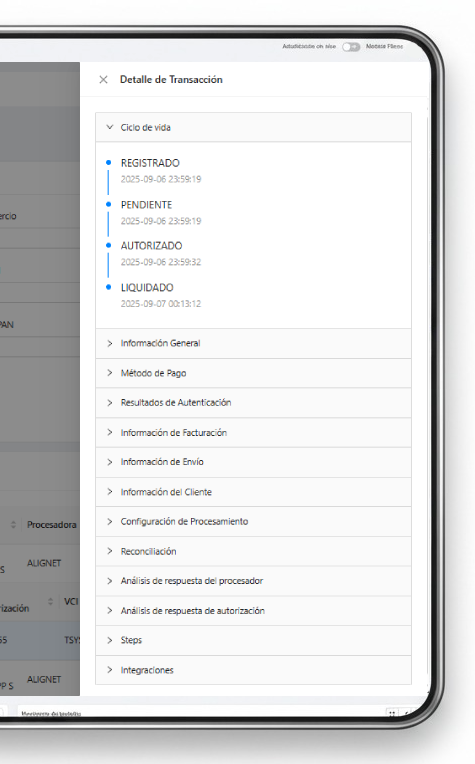
The side panel displays full traceability: lifecycle, transaction data, 3DS details, processing steps, and logs.

Privacy Notice: Sensitive data (PAN, phone number, email) is displayed in masked form. Do not share screenshots containing PII outside secure channels.